RPG MAKER MZ HELP
Playing Your Game
Basic Controls
Running Your Game
How you run a game made using this software changes depending on how the game is deployed.
For Windows
Double-click [Game.exe] (or [Game]) found in the game data folder.
For macOS
Double-click [Game.app] (or [Game]) found in the game data folder.
Controls
The standard controls for games created with this software use a 4-button game pad. Button names are based off the Xbox 360 Controller. Supported game pad buttons/keyboard keys and functions used in standard games are as follows. The D-pad on the gamepad or the keyboard's arrow keys are used to control the movement of characters and the cursor.
| Controls | Game Pad * | Keyboard | Mouse | Touch |
|---|---|---|---|---|
| Movement | D-pad | Arrow keys, num pad | Click destination * | Tap destination * |
| OK | A | Z, Enter, Space | Click target | Tap target |
| Cancel | B | X, Esc, Num pad 0 | Right click | Tap with two fingers/cancel button |
| Menu | Y | X, Esc, Num pad 0 | Right click | Tap with two fingers/menu button |
| Dash | X | Shift | ||
| Previous page | LB | Q, Page up | ||
| Next page | RB | W, Page down | ||
| Scroll pages | D-pad | Arrow keys, num pad | Drag from inside of page to outside of page/mouse scroll wheel | Tap and hold as you swipe from inside of page to outside of page |
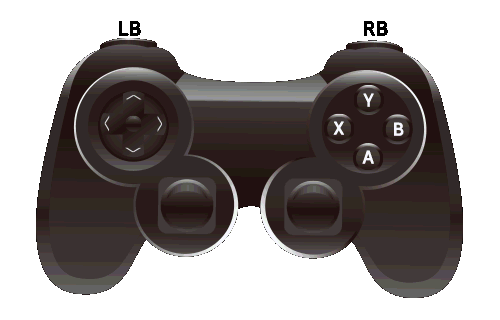
* Continue to click/tap and hold inside the screen when you move around the map to continue moving in that direction.
Special Controls
| Key | Function |
|---|---|
| F2 | Toggle FPS and Drawing Mode display |
| F3 | Toggle Stretch Mode |
| F4 | Toggle Full Screen Mode |
| F5 | Reload |
| F8 | Open developer tools (Playtest only) |
| F9 | Open Debug Screen (Playtest only) |
| Ctrl + Arrow key | Move through obstacles (Playtest only) |
| Scroll wheel | Scroll pages |
In-game Menu Controls
Title Menu
The title screen will appear when you run your game. Select and run one of the options below.
New Game
Start a new game from the beginning.
Continue
Resume a game from previous save data. Select Save Data.
Options
Adjust settings related to the overall game such as BGM volume.
Menu During Movement
When a player is moving on the map, this menu is displayed when you press the Menu button (same as the Cancel Button except for gamepad). Using the commands in the upper left, you can perform actions such as using items to recover an actor's status, or save the game state of the current game. Details for each command are as follows.
Items
Check/use items that your party currently possesses. To use an item, select it from the list (depending on the item, you may need to select the target actor to apply its effect).
Skills
Check/use skills (magic, etc.). To use a skill, select it from the list (depending on the skill, you may need to select the target actor to apply its effect).
Equip
Check/change equipment. When selecting an actor and changing equipment, you will select both the equipment slot you want to change and the item to equip (or an empty item to remove the equipment).
Status
Check on an actor's status. Select the target actor.
Formation
Change the order of your party members.
Options
Adjust settings related to the overall game such as BGM volume.
Save
Save the current game state. Select where you wish to save from 20 different save slots.
End Game
Quits the game. Select either [To Title] or [Cancel] (cancels the operation).
Battle Menu
The game will switch to the Battle Screen upon encountering an enemy in the game. You can advance the battle by selecting the following commands. When all party members' HP reaches 0, it will result in a Game Over.
Party Commands
Commands that display during each turn. Select [Fight] to continue the battle or [Escape] to run away from the enemy. However, if an enemy moves to attack you, only the enemy will be able to perform any actions until the turn ends even if you select [Escape].
Actor Commands
You will select each party member's action when you select [Fight] in the party commands. The primary actions are [Attack] (attack using the currently equipped weapon), [Guard] (protect oneself and reduce incoming damage), and [Item] (use currently held items). The types of actions you can select depend on the actor's settings.
Shop Menu
At the shop you can buy and sell items, weapons, armor, etc.
Buy
When you select [Buy], items, weapons, armors, etc. that you can purchase are displayed. Select an item, enter the amount to purchase, and press the OK button to buy.
Owned/Actors able to equip
The number of the selected items your party already owns is displayed in the right window.
When buying weapons and armor, party members who are unable to equip an item will be grayed out.
When you have 5 or more party members, you can use the dash button or click (tap) the right window to display the members beyond the 5th member.Sell
When you select [Sell] and select [Item], [Weapon], [Armor], or [Key Item], the items you possess will be displayed. Select the item you wish to sell, enter the amount to be sold, and press the OK button to sell.
Entering Amount
| D-pad/arrow key | Function |
|---|---|
| Right | +1 item amount |
| Left | -1 item amount |
| Up | +10 item amount |
| Down | -10 item amount |
| Button | Function |
|---|---|
 | +1 item amount |
 | -1 item amount |
 | +10 item amount |
 | -10 item amount |
 | OK |
*When using a touch device, you can change the amount and confirm your purchase by tapping the buttons shown above.
Developer Tools
The Developer Tools will be shown when you press the F8 key while test playing your game. Please see [How to Use Developer Tools] for more information.